Since LWC is based on SPA. There is a good possibility that we would have to work with modal popup in LWC.
When we want to provide the option of creating a new record or when we want to update an existing record, we will not have the liberty to redirect the user to a new page, since everything is based on Single Page Architecture in LWC.
The solution in that case is, usage of modal popup in LWC.
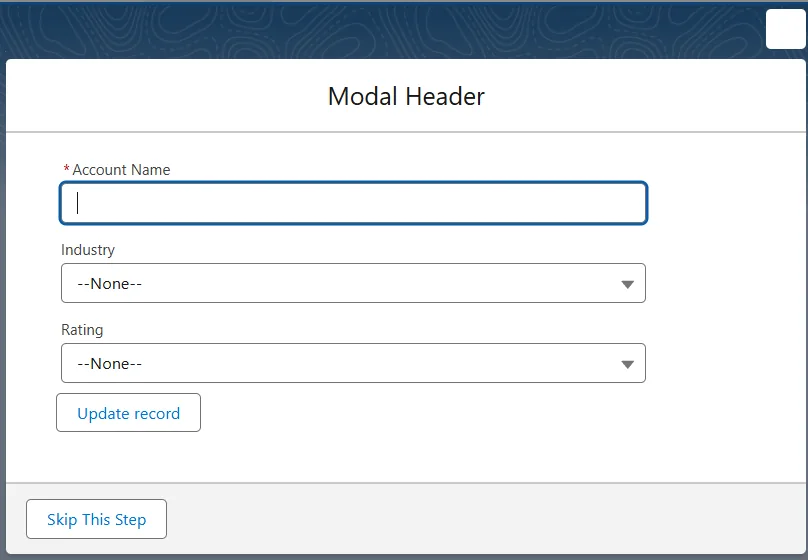
modal pop-up in lwc
Let me give you a use case before we get hands-on. Let's say we want to have a custom implementation of updating a record.
In that case, I would like to have a custom button and I will tie-up the custom functionality to it by making use of modal popup in LWC.
This is how it can be implemented.
This can be implemented in 2 ways.
- Making use of JS and HTML attributes
- Using properties in Lightning Web Components
You can take your pick in terms of which approach has to be used, however, if you are focusing on the performance then it's better to use the first approach as we will not be rendering the component multiple times.
Making use of JS and HTML attributes
Here comes the template file ExploreModalsLWC.html.
<template>
  <lightning-button label="show popup" onclick={handlePopup}></lightning-button>
  <div class="chart slds-m-around_medium" lwc:dom="manual"></div>
  <section
    id="modal"
    role="dialog"
    tabindex="-1"
    aria-labelledby="modal-heading-01"
    aria-modal="true"
    aria-describedby="modal-content-id-1"
    class="slds-modal slds-fade-in-open slds-hide"
  >
    <div class="slds-modal__container">
      <header class="slds-modal__header">
        <button
          class="slds-button slds-button_icon slds-modal__close slds-button_icon-inverse"
          title="Close"
        >
          <svg
            class="slds-button__icon slds-button__icon_large"
            aria-hidden="true"
          >
            <use
              xlink:href="/assets/icons/utility-sprite/svg/symbols.svg#close"
            ></use>
          </svg>
          <span class="slds-assistive-text">Close</span>
        </button>
        <h2 id="modal-heading-01" class="slds-modal__title slds-hyphenate">
          Modal Header
        </h2>
      </header>
      <div
        class="slds-modal__content slds-p-around_medium"
        id="modal-content-id-1"
      >
        <div class="slds-p-bottom_large slds-p-left_large" style="width:500px">
          <lightning-record-edit-form
            id="recordViewForm"
            record-id={recordId}
            object-api-name="Account"
          >
            <lightning-messages></lightning-messages>
            <lightning-input-field field-name="Name"> </lightning-input-field>
            <lightning-input-field field-name="Industry">
            </lightning-input-field>
            <lightning-input-field field-name="Rating"> </lightning-input-field>

            <lightning-button
              type="submit"
              label="Update record"
              class="slds-m-top_medium"
            >
            </lightning-button>
          </lightning-record-edit-form>
        </div>
      </div>
      <footer class="slds-modal__footer slds-modal__footer_directional">
        <button class="slds-button slds-button_neutral" onclick={handleSkip}>
          Skip This Step
        </button>
      </footer>
    </div>
  </section>
  <div
    class="slds-backdrop slds-backdrop_open slds-hide modalBackdrops"
    id="modalBackdrops"
  ></div>
</template>
And this is going to be the JS file ExploreModalsLWC.js.
import { LightningElement, api } from "lwc";

export default class ExploreModalsLWC extends LightningElement {
  @api recordId;

  handlePopup() {
    this.template.querySelector("section").classList.remove("slds-hide");
    this.template
      .querySelector("div.modalBackdrops")
      .classList.remove("slds-hide");
  }

  handleSkip() {
    this.template.querySelector("section").classList.add("slds-hide");
    this.template
      .querySelector("div.modalBackdrops")
      .classList.add("slds-hide");
  }
}
In case your object has RecordTypes activated even that can be implemented in the template file. You can do some research on record-type-id on lightning-record-edit-form tag.
There is an alternative approach to achieve this, which is by using properties in LWC.
Using properties in Lightning Web Components
This is the alternative approach, since we are using properties here when ever a property is mutated and when its used in the template file complete template re-renders.
<template>
  <lightning-button label="show popup" onclick={handlePopup}></lightning-button>
  <div class="chart slds-m-around_medium" lwc:dom="manual"></div>

  <template if:true={modalPopUpToggleFlag}>

    <section
      id="modal"
      role="dialog"
      tabindex="-1"
      aria-labelledby="modal-heading-01"
      aria-modal="true"
      aria-describedby="modal-content-id-1"
      class="slds-modal slds-fade-in-open"
    >
      <div class="slds-modal__container">
        <header class="slds-modal__header">
          <button
            class="slds-button slds-button_icon slds-modal__close slds-button_icon-inverse"
            title="Close"
          >
            <svg
              class="slds-button__icon slds-button__icon_large"
              aria-hidden="true"
            >
              <use
                xlink:href="/assets/icons/utility-sprite/svg/symbols.svg#close"
              ></use>
            </svg>
            <span class="slds-assistive-text">Close</span>
          </button>
          <h2 id="modal-heading-01" class="slds-modal__title slds-hyphenate">
            Modal Header
          </h2>
        </header>
        <div
          class="slds-modal__content slds-p-around_medium"
          id="modal-content-id-1"
        >
          <div class="slds-p-bottom_large slds-p-left_large" style="width:500px">
            <lightning-record-edit-form
              id="recordViewForm"
              record-id={recordId}
              object-api-name="Account"
            >
              <lightning-messages></lightning-messages>
              <lightning-input-field field-name="Name"> </lightning-input-field>
              <lightning-input-field field-name="Industry">
              </lightning-input-field>
              <lightning-input-field field-name="Rating"> </lightning-input-field>

              <lightning-button
                type="submit"
                label="Update record"
                class="slds-m-top_medium"
              >
              </lightning-button>
            </lightning-record-edit-form>
          </div>
        </div>
        <footer class="slds-modal__footer slds-modal__footer_directional">
          <button class="slds-button slds-button_neutral" onclick={handleSkip}>
            Skip This Step
          </button>
        </footer>
      </div>
    </section>
    <div
      class="slds-backdrop slds-backdrop_open modalBackdrops"
      id="modalBackdrops"
    ></div>
  </template>
</template>
import { LightningElement } from 'lwc';

export default class ExploreModalsLWC extends LightningElement {

  @api recordId;
  modalPopUpToggleFlag = false;

    handlePopup(){
        this.modalPopUpToggleFlag = true;
    }

    handleSkip(){
        this.modalPopUpToggleFlag = false;
    }

}
Hope this was helpful!
Learn it by building it
Every course, every code repository, the discussion group and certificates of completion — one subscription.